
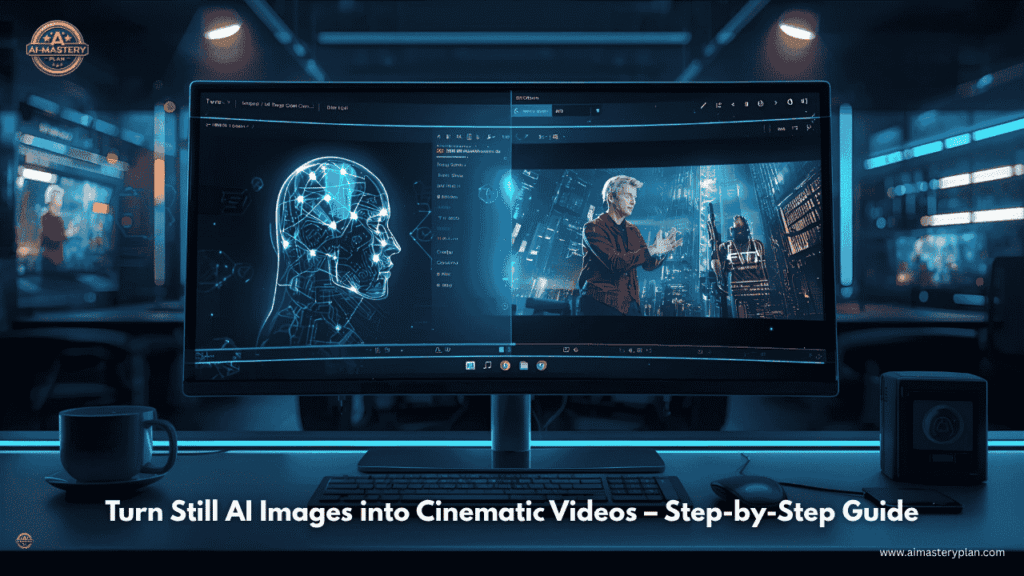
Objective
By the end of this lesson, learners will:
- Understand how AI converts still images into motion.
- Learn to use Pika Labs (and free alternatives) to create short AI videos.
- Add movement, camera effects, and depth to a static image.
- Export a professional-quality short motion video ready for voice or music.
1. What You’ll Learn Today
In this module, we’ll take the image you created in Module 1 and transform it into a video.
You’ll learn:
- How AI creates motion from still pictures.
- How to write motion prompts that guide animation.
- How to use Pika Labs step-by-step.
- How to export and save your video.
2. The Concept: How AI Brings Still Images to Life
AI video generation works just like human imagination.
When you see a photo of a waterfall, your mind instantly imagines water flowing, wind moving, and sound playing.
AI does the same — it analyses your picture and adds motion based on your instructions.
This process is called Image-to-Video Generation —
AI detects objects, depth, and lighting, then animates them smoothly.
3. Tools You’ll Use
| Purpose | Tool | Website |
|---|---|---|
| Main Tool | Pika Labs | https://pika.art |
| Alternative (Free Trial) | Runway ML | https://runwayml.com |
| Optional | CapCut AI Motion | https://www.capcut.com |
We’ll use Pika Labs, because it’s free, simple, and powerful for beginners.
4. Step-by-Step: How to Create an AI Video Using Pika Labs
Step 1 – Open the Tool
Go to: https://pika.art
Sign up with Google or Discord (takes less than a minute).
Step 2 – Upload Your Image
Click “Upload Image”
Select the AI image you made in Module 1 (for example, mountain road sunrise.jpg).
You’ll see a preview of your static image on screen.
Step 3 – Add Your Motion Prompt
In the text box below your image, write your motion description —
this tells the AI how to move elements.
Examples of simple motion prompts:
- “Camera slowly moves forward.”
- “Gentle wind moves the trees.”
- “Clouds drift slowly across the sky.”
- “Sunlight flickers on the surface of water.”
- “Rain starts falling softly with ambient lighting.”
Try to use short, clear English sentences.
Step 4 – Choose Duration and Aspect Ratio
Default video length is 4 seconds — perfect for testing.
You can later increase to 8 or 10 seconds for smoother results.
For social media, use:
- 9:16 (vertical) for Reels / Shorts
- 16:9 (horizontal) for YouTube
Click Generate Video.
Wait for 30–60 seconds.
Step 5 – Review and Download
You’ll see your AI-generated video preview.
If it looks good, click Download MP4.
If not, click Regenerate with slightly different motion text.
Example:
First Prompt: “Camera zooms in.”
Next Try: “Camera pans slowly to the left with cinematic motion.”
The key is trial and improvement — AI learns from your clarity.
5. Practice Exercise (Your First AI Motion Clip)
Task:
Create a 5–10 second AI video from one of your generated images.
Example workflow:
- Upload “forest path with autumn leaves” image.
- Prompt: “Wind moves through trees, leaves fall slowly, sunlight flickers through branches.”
- Generate and download the video.
Save it as:forest_autumn_motion.mp4
6. Optional – Add Motion Using CapCut AI (Mobile-Friendly)
If you want to create motion directly on your phone:
- Open CapCut.
- Upload your image.
- Go to AI Motion → choose “Dynamic” or “3D Zoom.”
- Export video.
This works great for quick social media content creation.
7. Pro Tips for Realistic Motion
- Keep prompts short: 8–12 words max.
- Use natural verbs: move, sway, drift, shine, zoom, blink.
- Avoid complex instructions in one line.
- Add atmosphere words: cinematic, slow motion, dramatic, calm.
- Always generate multiple versions — AI improves with repetition.
8. Troubleshooting Common Problems
| Problem | Reason | Solution |
|---|---|---|
| Motion looks unrealistic | Too many objects moving | Simplify your prompt |
| Wrong focus area | No camera instruction | Add “camera pans” or “camera zooms” |
| Low quality | Poor lighting in image | Use brighter base image |
| Motion not visible | Very short duration | Try 8–10 seconds |
9. Mini Project – Cinematic AI Clip
Create a 10-second cinematic video using one of these prompt templates:
- “Camera slowly moves through foggy mountains, cinematic atmosphere.”
- “Rain falls over a glowing neon city, reflections on wet streets.”
- “Sunlight passes through trees in slow motion, gentle wind blowing.”
Once done, you’ll have your first AI-generated short video — ready for voice-over in Module 3.
10. Key Takeaways
- AI can animate still images using simple text prompts.
- Pika Labs is one of the easiest tools for AI motion generation.
- Keep your instructions short, descriptive, and realistic.
- Always preview multiple versions before finalizing.
FAQs – Module 2: Turning AI Images into Moving Videos
(AI Visual Creator Course – Learn to Make Image, Video & Voice Using AI)
1. What is the main tool used to convert AI images into videos?
The main tool used in this module is Pika Labs — a free, web-based AI platform that converts still images into short motion videos using natural language prompts.
You can also try CapCut AI Motion or Runway ML as alternatives.
2. Do I need any special software to make AI videos?
No, you don’t need to install any software.
All tools used in this module work directly in your web browser (Google Chrome or Edge).
You just upload your image, type your motion prompt, and generate the video.
3. Is Pika Labs free to use?
Yes, Pika Labs offers a free plan that allows users to generate multiple short videos each day.
You can upgrade to a paid plan if you need longer or high-resolution clips, but for learning and practice, the free version is enough.
4. What kind of motion can AI create from an image?
AI can add a variety of realistic movements, such as:
- Camera panning and zooming
- Natural elements like wind, rain, or fog
- Lighting changes and reflections
- Object movement (limited)
AI analyses your image’s depth and texture, then animates it accordingly.
5. My video looks too fake or unnatural — what am I doing wrong?
Unrealistic motion usually happens when:
- The prompt is too complex.
- You use too many actions at once.
- The image doesn’t have enough visual depth.
Solution: use short, clear prompts like
“Camera slowly pans across the beach with gentle wind.”
and avoid overloading with multiple effects.
6. How long can my AI video be?
In the free version, your AI-generated video will usually be between 4 to 10 seconds long.
This is ideal for testing, motion previews, or short clips for social media.
You can later combine multiple clips to make longer videos.
7. Can I use the AI-generated videos for commercial or YouTube content?
Yes, you can use them for YouTube, Instagram, or personal projects.
However, always check Pika Labs’ license policy for commercial use if you plan to monetize your videos.
8. What’s the best way to write a motion prompt for Pika Labs?
Use a simple and descriptive format:
[Camera action] + [Subject] + [Atmosphere or lighting]
Example:
“Camera slowly moves through foggy forest with soft morning light.”
Avoid vague words like “make it move” — instead, describe how it should move.
9. Can I add sound or music in Pika Labs directly?
No.
Pika Labs focuses only on video motion generation.
You’ll add voice and background music later in Module 3 using tools like CapCut or ElevenLabs.
10. Can I create motion videos from any type of image?
Almost — but the best results come from clear, high-quality images with visible foreground and background.
Blurry or flat images may produce unnatural motion.
Try to use AI images that have depth and lighting variations (like sunlight, shadows, reflections).
11. Can I make vertical videos for Reels or Shorts?
Yes.
Before generating your video, choose the 9:16 vertical aspect ratio inside Pika Labs.
This format is perfect for Instagram Reels, YouTube Shorts, and TikTok.
12. How can I make my AI video more cinematic?
To achieve a cinematic feel:
- Use prompts with words like “cinematic,” “slow motion,” “soft lighting,” or “depth of field.”
- Choose warm tones and gradual motion instead of fast effects.
- Combine multiple short clips later in CapCut with transitions and music.
13. What if I want to use my phone instead of a laptop?
You can.
Tools like CapCut AI Motion and Kaiber AI work perfectly on mobile.
Simply upload your AI-generated image and choose “Dynamic Motion” or “3D Zoom” options.
14. My generated video is too short. How can I make it longer?
You can’t extend one clip directly inside Pika Labs’ free plan,
but you can generate multiple short clips (4–6 seconds each) and then merge them together using CapCut or any video editor.
15. What’s next after creating my first AI video?
After completing this module, your next step is Module 3 – Adding AI Voice to Your Video.
There, you’ll learn to generate realistic voice narration using ElevenLabs or CapCut Text-to-Speech (TTS) and sync it perfectly with your motion clip.
Next Step
Now that you’ve learned how to make your image move,
it’s time to give your video a voice — a professional, human-like narration using AI voice generation tools.
Continue to:
Module 3 – Adding AI Voice to Your Video →